
Templates
Templates let you save a project as a reusable starting point, so you can run multiple experiments from the same foundation without starting over each time.
Templates let you save a project as a reusable starting point, so you can run multiple experiments from the same foundation without starting over each time.
Why Templates Matter
If you've built a project to a point where it's a solid base — the layout is right, the design system is set, the core structure works — you can save it as a template. Then every new experiment, feature exploration, or design variation gets its own project, branching off from that common starting point.
This is especially useful when:
- You're a PM testing multiple feature directions on the same product
- You want to explore different designs without losing the original
- Your team needs a shared base that everyone starts from
- You're running workshops or design challenges with a consistent starting point
Saving a Template
- Open the project you want to save as a template
- Click the project name in the top-left corner to open the Project menu
- Select Save as Template
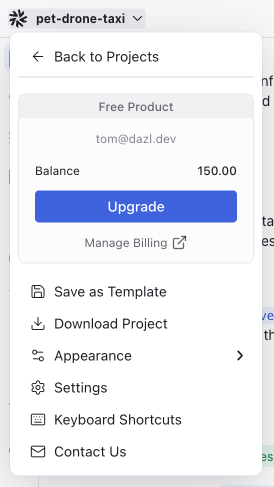
In the modal, you can configure:
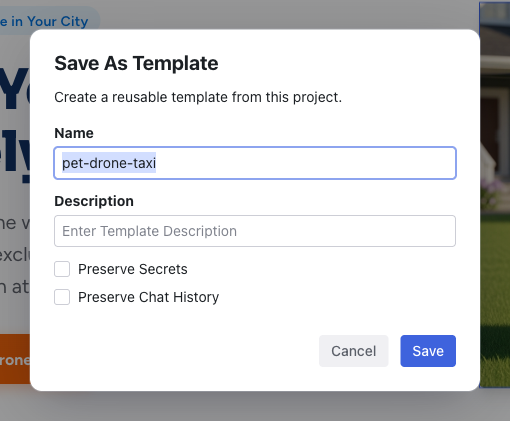
- Name — pre-filled with the project name, but you can change it
- Description — an optional summary that appears alongside the template on the Dashboard
- Preserve Secrets — include the values stored in the Keys panel (API keys, tokens, etc.)
- Preserve Chat History — include the conversation history from the Chat panel
Click Save and the template appears on your Dashboard.
Using a Template
Templates appear on your Dashboard. Click a template to create a new project based on it — Dazl copies the entire project (code, specs, theme, everything) into a fresh instance that you can modify independently.
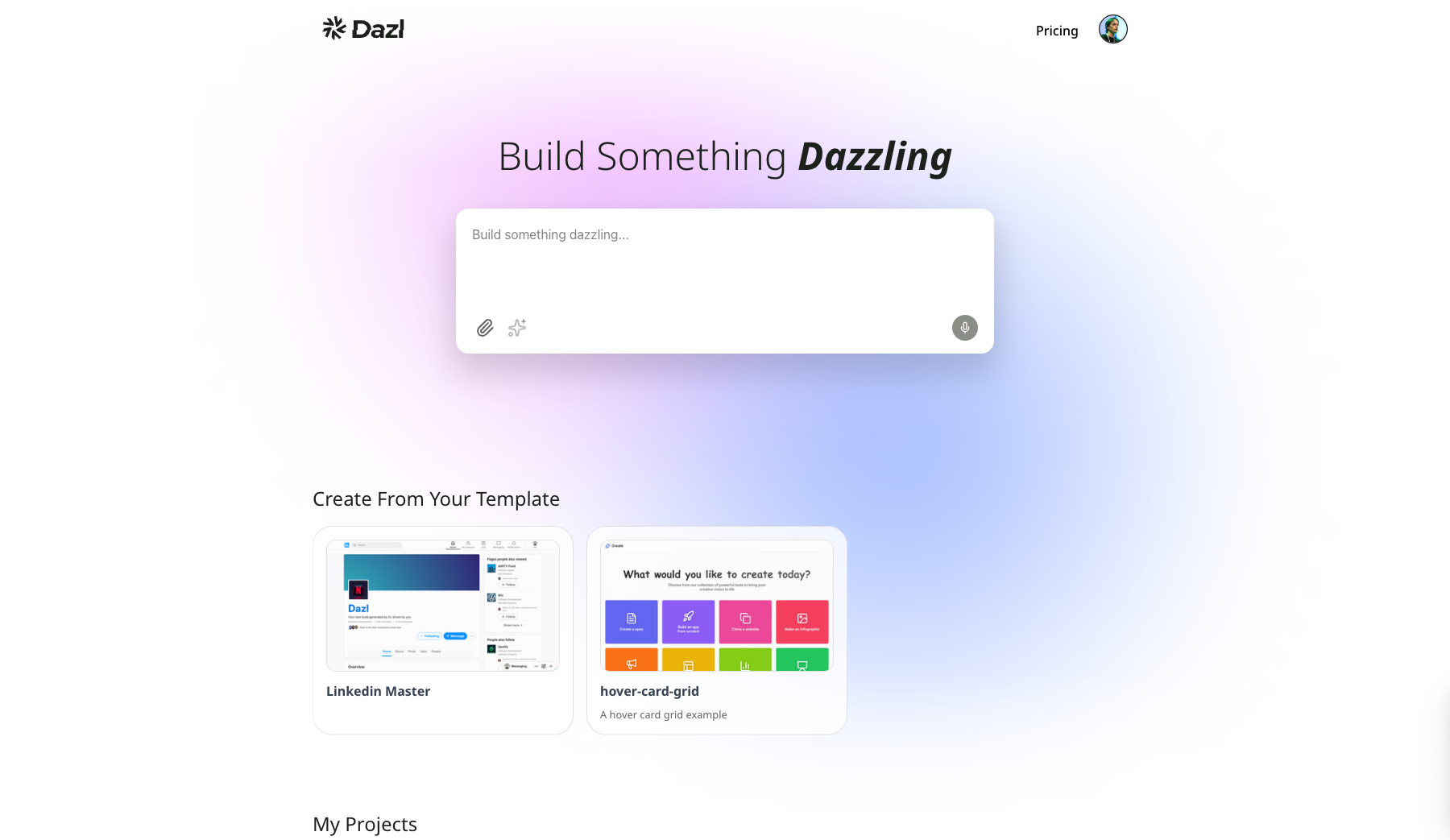
The original template stays unchanged, so you can create as many projects from it as you need.
Think of templates as snapshots. Build your project to a good baseline, save it as a template, then branch off for each experiment. If an experiment doesn't work out, start fresh from the template.
Related Articles
- Starting a Project – all the ways to begin a new project
- The Dashboard – where templates and projects live