
Publishing and Sharing
When your interactive prototype is ready for feedback, you can publish it to a live URL or share the preview link — giving stakeholders, team members, or test users access to the real experience.
When your interactive prototype is ready for feedback, you can publish it to a live URL or share the preview link — giving stakeholders, team members, or test users access to the real experience.
Sharing the Preview
Every active project has a preview URL that works as long as the project's server is running. You don't need to publish to share — the preview URL is accessible from any device and any browser.
To share the preview:
- Copy the URL shown in the URL bar at the top of the center area
- Send it to the people you want to see the project
This is useful for quick feedback loops — share the link in a message, and your team can interact with the prototype on their own device, including mobile.
The preview URL is available as long as the project's server is active. It doesn't require the publishing step.
Publishing
For a more permanent URL, use the Publish feature:
- Click Publish in the top-right corner of the top bar
- In the Publish dialog, click Publish
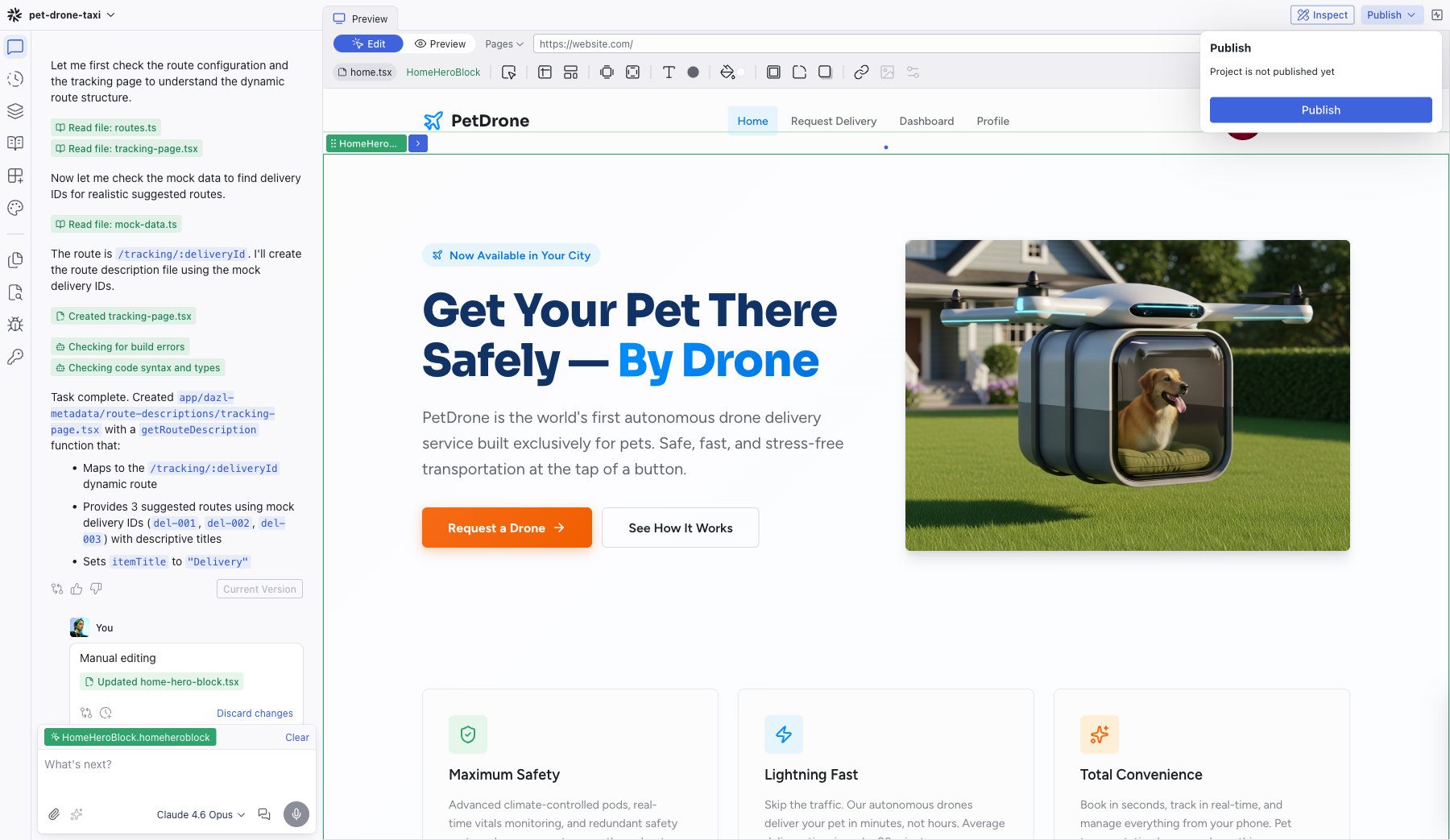
Once published, your project gets a dedicated live URL that persists independently of your editing session. You can share this URL for:
- Stakeholder demos — present a high-fidelity, functional interactive prototype
- User testing — let real users interact with the experience on any device
- Team review — give everyone a single link to the current state of the project
Custom Domains
You can connect a custom domain to your published project for a more polished presentation URL. This is useful when presenting to external stakeholders or running validation tests where the URL itself matters. See Publishing for setup details.
What Gets Published
Publishing serves the same real application that you see in the editor — the same code, the same server, the same behavior. It's not a simplified or stripped-down version.
Dev routes are excluded from the published version. Pages you've created as development-only tools (admin panels, data management interfaces) don't appear in the published project. See Pages and Routing for more on dev routes.
Related Articles
- Publishing – the Publish dialog, custom domains, and what gets published
- Handing Off to Developers – go beyond sharing to production handoff
- Pages and Routing – dev routes and dynamic pages
Working with Code
Dazl generates real source code — React components, CSS modules, TypeScript files — and you can view and edit that code directly. The Files panel and the code editor give you access to every file in your project.
Handing Off to Developers
Once your interactive prototype captures the right experience, the next step is getting it into the hands of your engineering team. Dazl supports several handoff patterns depending on what works best for your team.