
Working with Code
Dazl generates real source code — React components, CSS modules, TypeScript files — and you can view and edit that code directly. The Files panel and the code editor give you access to every file in your project.
Dazl generates real source code — React components, CSS modules, TypeScript files — and you can view and edit that code directly. The Files panel and the code editor give you access to every file in your project.
Browsing Files
Click the Files tab in the left sidebar to open the file tree. You'll see the full directory structure of your project, organized into folders with expand/collapse controls. Files are shown with type-specific icons (.tsx, .css, .ts).
Click any file to open it as a tab in the center area.
Quick Open
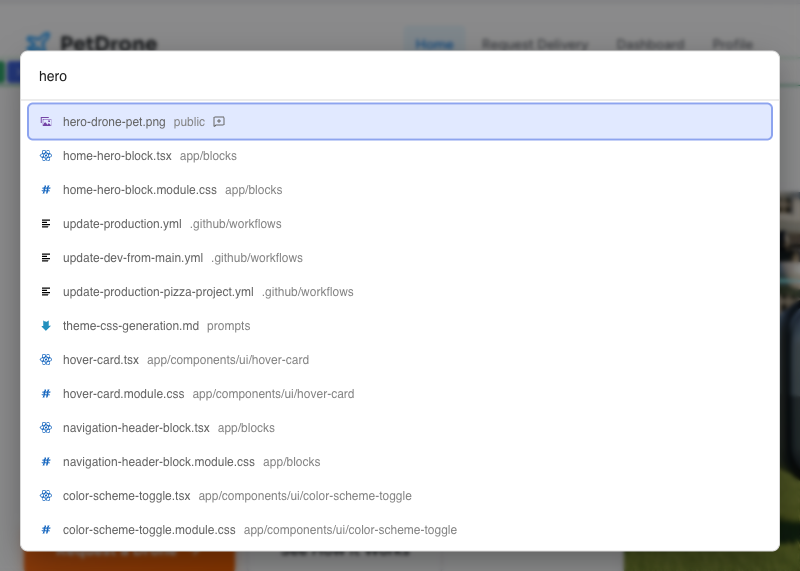
Press Cmd+P (Mac) or Ctrl+P (Windows) to open the Quick Open dialog. Start typing a filename and the list filters in real time using fuzzy matching.
The Code Editor
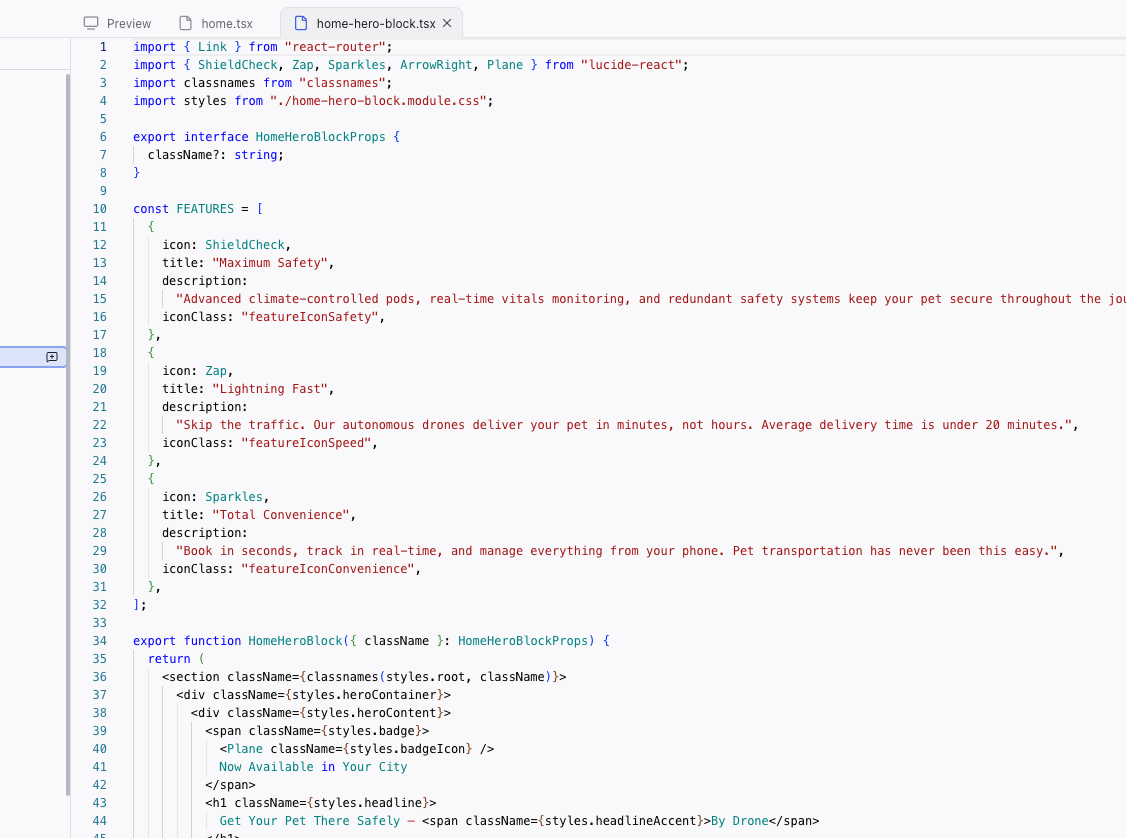
Code files open in an editor with:
- Syntax highlighting – color-coded TypeScript, CSS, JSON, and other languages
- Line numbers – in the left gutter
- Code folding – collapse and expand blocks using the arrows next to line numbers
You can edit code directly in the editor. Changes are saved automatically and reflected in the preview.
Tabbed Editing
The center area is a tabbed container. You can have multiple files and the Preview open as tabs simultaneously.
Tabs follow a dynamic-until-pinned system:
- Opening a file replaces the current unpinned tab (shown in italic text)
- Double-click a tab to pin it (it switches to normal text and stays open)
- Start typing in a file or making an edit to automatically pin its tab
This keeps your workspace clean while letting you pin the files you're actively working with.

When to Edit Code Directly
Most of the time, you'll work through visual editing or the chat. But direct code access is useful when:
- You want to paste something – a code snippet, a configuration block, or content from another source
- You need to understand the structure – reading the code helps you see how components are organized and how data flows
- You're debugging – sometimes the fastest way to fix something is to read the code and make a targeted edit
- You want to verify AI changes – open the file that was modified to see exactly what the AI wrote
You can open a file from the chat by clicking the "Open file" icon on any file edit card in an AI response. This jumps directly to the file that was changed.
Searching Across Files
Use the Search panel (in the left sidebar) to search for text across your entire project. Toggle options for Match Case, Whole Word, and Regex are available. Results are grouped by file with line numbers, and clicking a result opens the file at that line.
Related Articles
- Chat-Driven Editing – let the AI modify code through conversation
- Inspecting Your Project – see CSS rules and props without opening files
- Files – full reference for the Files panel
- Search – full reference for the Search panel
Understanding Changes
Every change made to your project — by the AI, by visual editing, or by direct code edits — is tracked. The History panel gives you a transparent record of what happened, when, and the ability to roll back to any previous state.
Publishing and Sharing
When your interactive prototype is ready for feedback, you can publish it to a live URL or share the preview link — giving stakeholders, team members, or test users access to the real experience.