
The Elements Tree
The Elements panel shows your project's component hierarchy — a tree view of every element on the current page. It's useful for selecting elements that are hard to click on the preview, and for understanding how your project is structured.
The Elements panel shows your project's component hierarchy — a tree view of every element on the current page. It's useful for selecting elements that are hard to click on the preview, and for understanding how your project is structured.
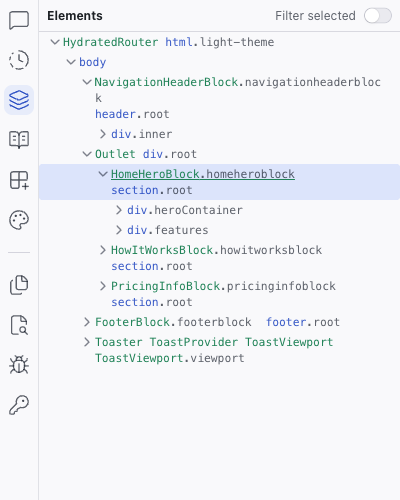
Using the Elements Tree
Click the Elements tab in the left sidebar to open the panel. You'll see a collapsible tree of component names and CSS class names, similar to the Elements panel in browser DevTools.
- Click a component or element to select it on the preview
- Expand/collapse nodes to explore the hierarchy
- Hover over a node to highlight the corresponding element in the preview
Readable Source Names
Unlike browser DevTools, where class names are often hashed or minified, the Elements panel shows everything in its original source name. You'll see names like NavigationHeaderBlock, HomeHeroBlock, and heroSection — the actual names used in the code.
This makes it straightforward to:
- Identify which component owns which part of the UI
- Find the right element to feed as context to the AI
- Align your team's vocabulary around consistent component names
When to Use the Elements Tree
The Elements tree is especially helpful when:
- An element is hard to select on the preview — it's behind another element, has zero dimensions, or is otherwise hard to click
- You want to understand the nesting structure — see which components contain which children
- You need to pass a specific element to the AI — select it in the tree, and it appears as context in the Chat panel
You can keep the Chat panel visible while browsing the Elements tree. Select an element from the tree, switch to Chat, and the element is already attached as context.
Related Articles
- Inspecting Your Project – see the CSS and props for selected elements
- Visual Editing – select and edit elements on the preview
- Elements – full reference
Inspecting Your Project
The Inspect panel gives you full visibility into how your project is built: which CSS rules affect each element, what properties are being passed, and where everything comes from. Think of it as browser DevTools, but integrated into your workflow, with readable source names and changes that persist to the source code instead of disappearing on refresh.
Understanding Changes
Every change made to your project — by the AI, by visual editing, or by direct code edits — is tracked. The History panel gives you a transparent record of what happened, when, and the ability to roll back to any previous state.