
Understanding Changes
Every change made to your project — by the AI, by visual editing, or by direct code edits — is tracked. The History panel gives you a transparent record of what happened, when, and the ability to roll back to any previous state.
Every change made to your project — by the AI, by visual editing, or by direct code edits — is tracked. The History panel gives you a transparent record of what happened, when, and the ability to roll back to any previous state.
The History Panel
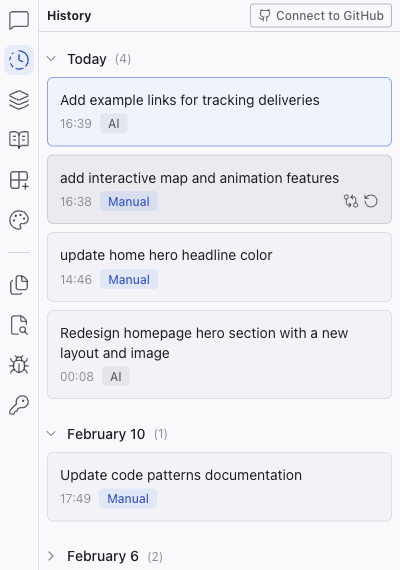
Click the History tab in the left sidebar. Revisions are displayed as a timeline grouped by collapsible date sections (e.g., "Today", "February 10", "February 6"), each showing a count of revisions. If your project isn't connected to GitHub yet, a GitHub Connect link appears in the panel header — click it to link your project to a repo.
Each revision shows:
- Title — a description of the change (e.g., "Build complete PetDrone app", "Updated hero section colors")
- AI / Manual label — whether the change was made by the AI or by you directly
- Timestamp — when the change happened
- View changes — shows a diff of exactly what was modified
- Restore — rolls the project back to this revision
Viewing Diffs
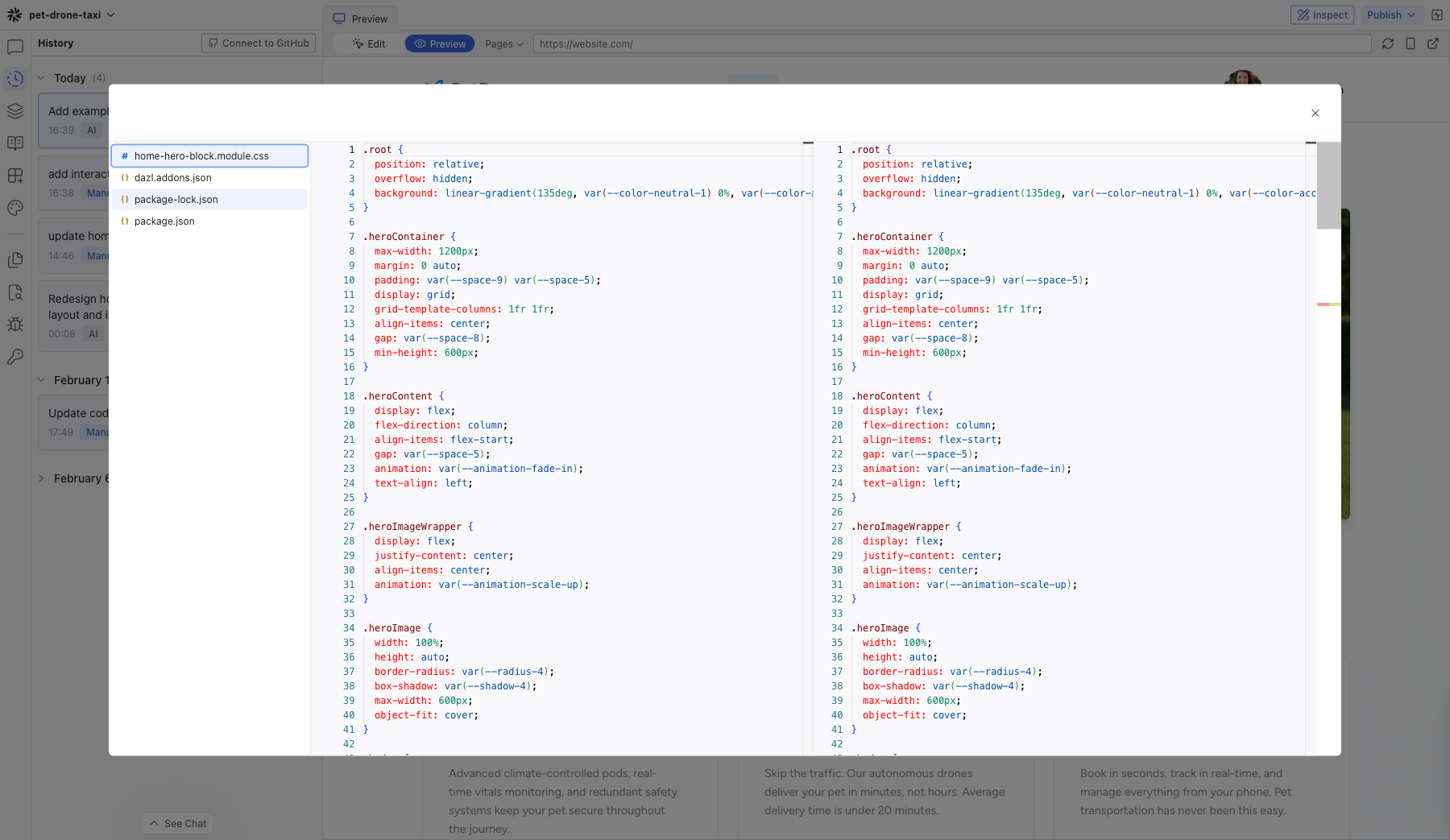
Click View changes on any revision to see a diff — the exact lines of code that were added, removed, or modified. This works for:
- AI-generated changes (from chat prompts)
- Visual edits (color changes, drag-and-drop, text edits)
- Code changes (direct edits in the code editor)
Seeing diffs for visual edits is particularly useful — when you drag an element or change a color, you can verify exactly what CSS was modified.
Restoring a Previous Version
Click Restore on any revision to roll your project back to that point. This is a safe operation — the current state is preserved as its own revision, so you can always restore forward again if needed.
Changes in the Chat
The Chat panel also tracks changes inline. Each AI response shows:
- File edit cards — expandable cards showing which files were updated or created, with an option to open the file
- File count summary — e.g., "5 files changed" with a "Show more" toggle to see all affected files
- View Code button — on the response marked "Current Version", click View Code to see a diff of the changes introduced by that response
- Version badge — the response that matches the current project state is marked "Current Version"; older responses show a Restore button
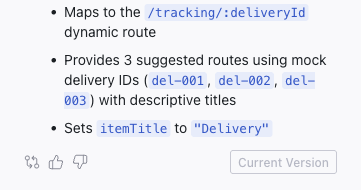
Clicking View Code opens a full diff view showing exactly what that response changed:
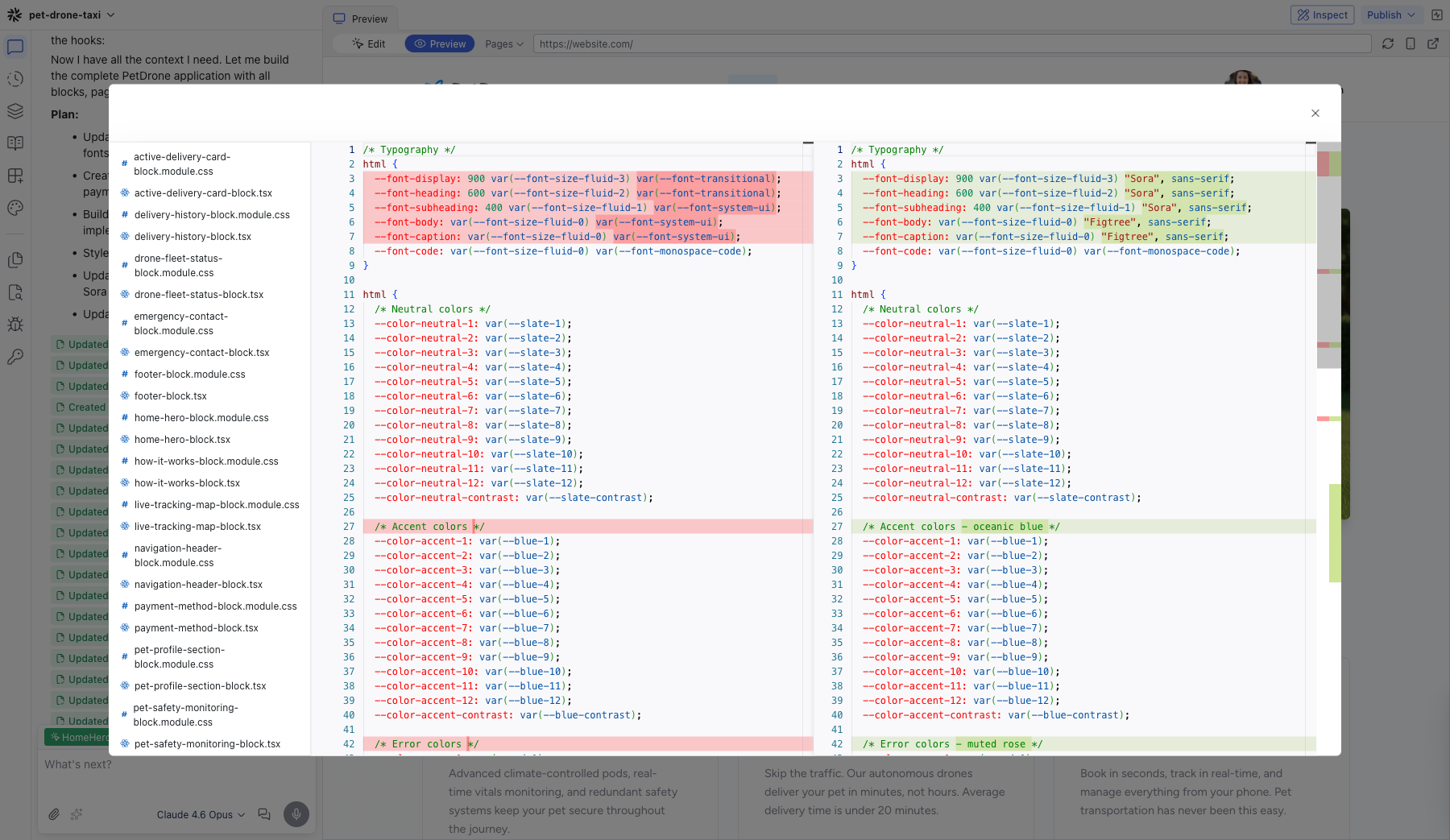
This makes it easy to trace back: if something looks wrong, scroll through the chat to find the response that introduced the change and view the diff directly.
Before making a large change, note the current revision in the History panel. If the result isn't what you expected, you can restore to that point in one click.
Related Articles
- Chat-Driven Editing – understanding AI responses and file change summaries
- History – full reference
The Elements Tree
The Elements panel shows your project's component hierarchy — a tree view of every element on the current page. It's useful for selecting elements that are hard to click on the preview, and for understanding how your project is structured.
Working with Code
Dazl generates real source code — React components, CSS modules, TypeScript files — and you can view and edit that code directly. The Files panel and the code editor give you access to every file in your project.