
Inspecting Your Project
The Inspect panel gives you full visibility into how your project is built: which CSS rules affect each element, what properties are being passed, and where everything comes from. Think of it as browser DevTools, but integrated into your workflow, with readable source names and changes that persist to the source code instead of disappearing on refresh.
The Inspect panel gives you full visibility into how your project is built: which CSS rules affect each element, what properties are being passed, and where everything comes from. Think of it as browser DevTools, but integrated into your workflow, with readable source names and changes that persist to the source code instead of disappearing on refresh.
Opening the Inspect Panel
Click the Inspect button in the top-right area of the top bar. The Inspect panel opens on the right side of the editor, alongside the preview.
Select an element in Edit mode to see its details in the panel.
Style Tab
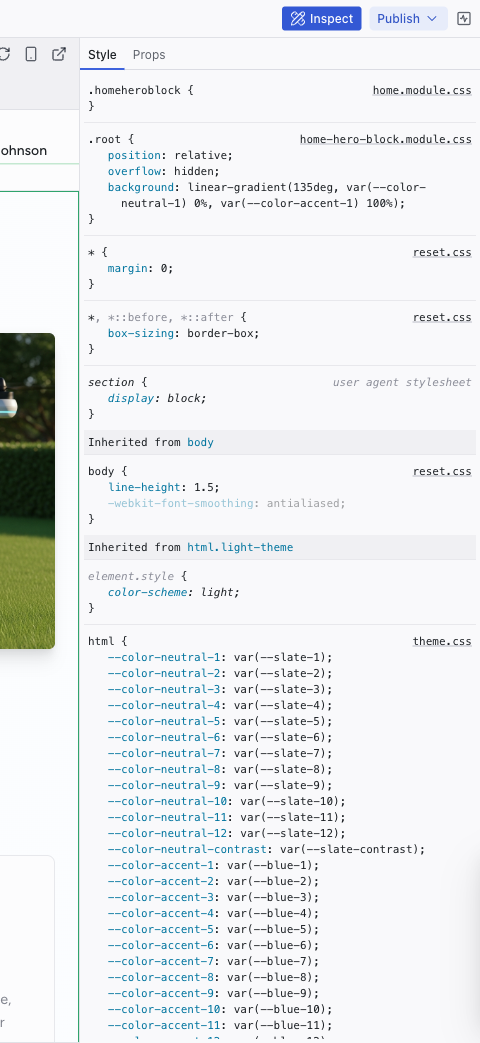
The Style tab shows every CSS rule affecting the selected element, ordered from most specific to least specific. Rules are grouped by source file:
- Project stylesheets (e.g.,
home.module.css,home-hero-block.module.css) - Theme files (
theme.css,colors.css,typography.css,spacings.css) - Reset and base styles (
reset.css) - User agent stylesheet (browser defaults, shown as read-only)
Each rule shows its CSS declarations, and you can edit values inline by clicking on them. Changes are written directly to the source file.
The Style tab also shows:
- Inherited styles – styles cascading from parent elements (body, html)
- Design tokens in use – color variables, spacing values, typography settings
Seeing which file a style comes from helps you understand your project's CSS architecture. If a color is defined in theme.css, changing it there will affect every element that uses that token.
Props Tab
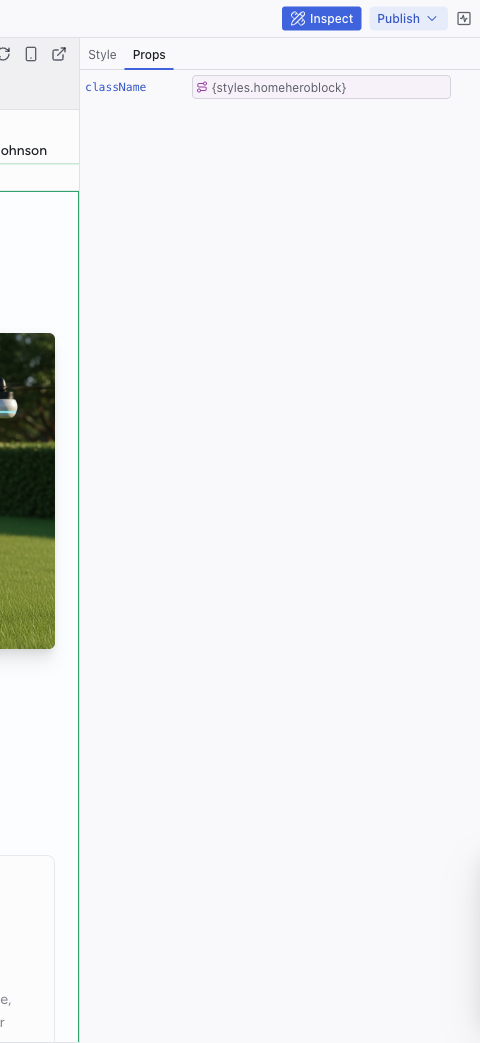
The Props tab shows the React component properties for the selected element, for example, className: {styles.homeheroblock}.
Inline values (strings, numbers, objects, arrays) can be edited directly in the text input. Bound expressions (e.g., {styles.homeheroblock}) show the expression and possibly the runtime value, but should be changed through the AI chat instead. If the selected element has no configurable props, the tab shows "No configured properties for this selection."
Why Inspection Matters
Dazl's code analysis engine displays everything in its original source names — the class names, component names, and file names you'd see in the actual code. Nothing is garbled or hashed in the Inspect panel.
This matters because:
- You can communicate precisely with your team about what needs to change ("the
heroSectionclass inhome.module.cssneeds more padding") - You can understand the AI's work by seeing exactly how it structured the CSS and components
- You can debug visual issues by tracing a style back to its source file
- The AI uses the same tools — it can read the same style and prop information when making changes, which helps it produce more accurate results
Related Articles
- The Elements Tree – navigate the component hierarchy
- Visual Editing – make changes to what you find during inspection
- Inspect – full reference
Chat-Driven Editing
The Chat panel is where you work with the AI to make changes that go beyond what visual editing can do — adding features, restructuring layouts, changing logic, or building entirely new pages.
The Elements Tree
The Elements panel shows your project's component hierarchy — a tree view of every element on the current page. It's useful for selecting elements that are hard to click on the preview, and for understanding how your project is structured.