
Publishing
Publish your project to a live URL that anyone can visit, and optionally connect a custom domain for a polished presentation.
The Publish button in the top-right corner of the editor gives your project a permanent, publicly accessible URL on dazl.live. Unlike the preview URL (which requires the project's server to be running), a published URL stays available independently of your editing session.
Publishing a Project
Click Publish in the top bar to open the Publish dialog.
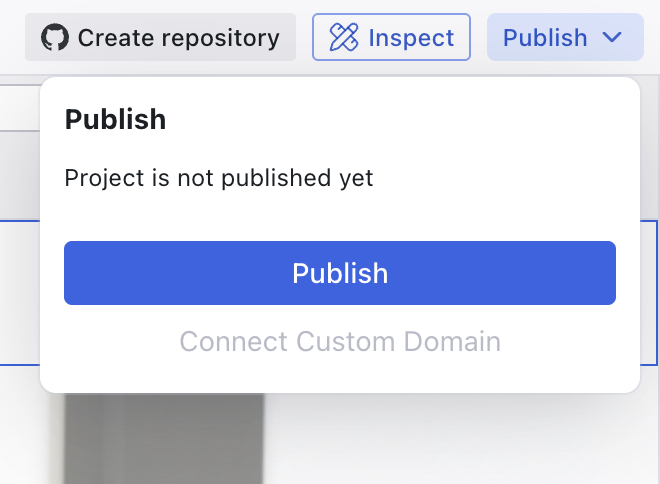
Click Publish in the dialog to start the build. Dazl builds and publishes your project, which takes a few seconds. Once complete, the dialog shows the live URL and a Live badge.
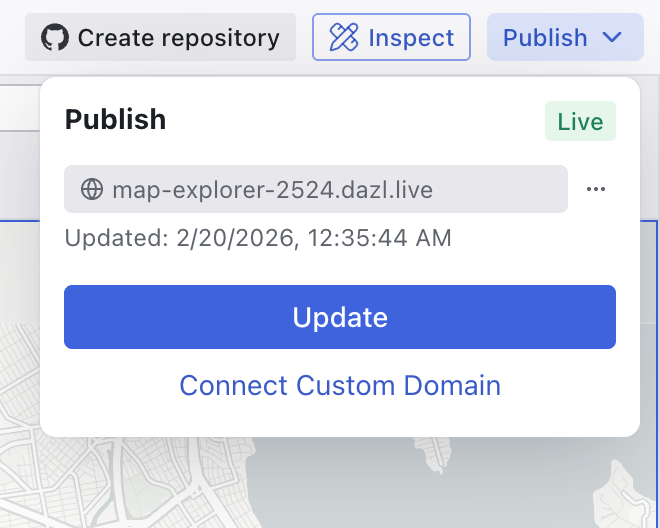
The published URL follows the pattern project-name-XXXX.dazl.live. You can click the URL to open it in a new tab, or use the copy button to share it.
Updating a Published Project
After making changes in the editor, open the Publish dialog and click Update to push the latest version to your live URL. The same URL stays active — anyone with the link sees the updated version after the build completes.
Custom Domains
For a more polished presentation URL, publish your project first, then click Connect Custom Domain in the Publish dialog. This opens a guided setup powered by Entri that walks you through configuring your domain's DNS settings, no developer needed.
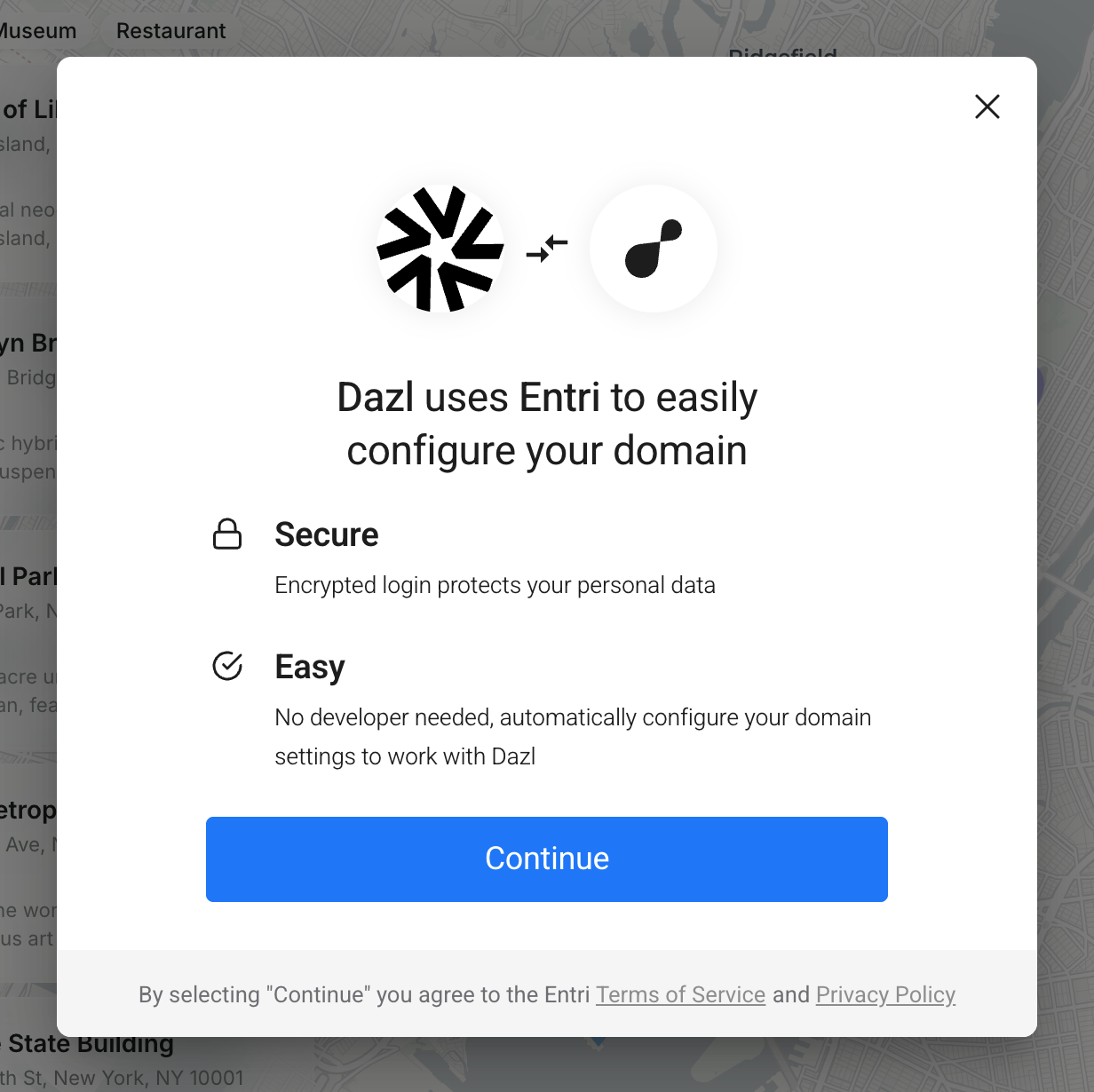
Custom domains are a Pro feature.
What Gets Published
Publishing serves the same application you see in the editor — the same code, the same behavior. It is not a simplified or stripped-down version.
Dev routes are excluded from the published version. Pages marked as development-only (admin panels, data management interfaces) don't appear in the published project. See Pages and Routing for more on dev routes.
Related Articles
- Publishing and Sharing – sharing previews vs. publishing for stakeholder demos
- Pages and Routing – dev routes and dynamic pages
- Handing Off to Developers – going beyond sharing to production handoff
Pages and Routing
The Pages dropdown in the top bar shows all the routes in your project and lets you navigate between them in the preview.
Media
The Media panel is part of the Editing Toolbar and opens when you select an image element (or double-click one). It lets you browse, replace, upload, and generate images for your project.