
Media
The Media panel is part of the Editing Toolbar and opens when you select an image element (or double-click one). It lets you browse, replace, upload, and generate images for your project.
The Media panel is part of the Editing Toolbar and opens when you select an image element (or double-click one). It lets you browse, replace, upload, and generate images for your project.
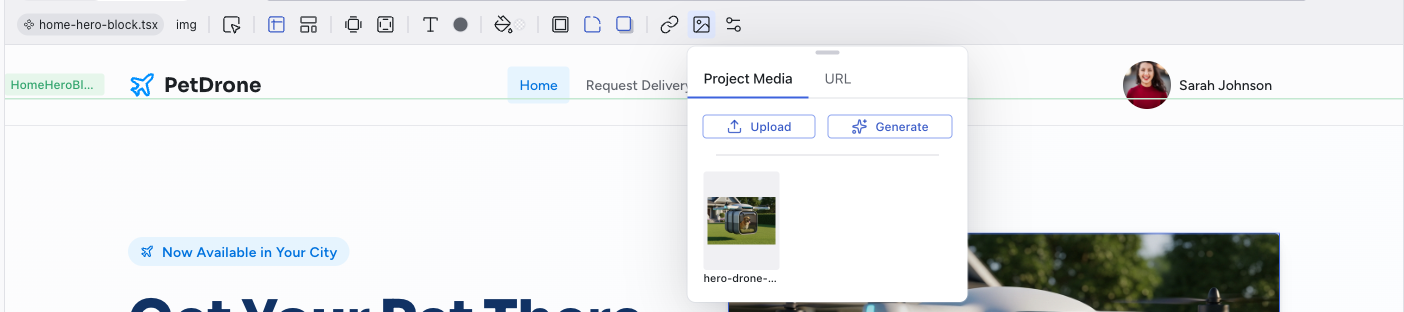
Project Media
The Project Media tab scans your project and displays all images currently in use as thumbnails. Click any image to use it for the selected element. Each image also has a delete button to remove it from the project.
Two action buttons appear at the top of this tab:
- Upload – add a new image from your computer
- Generate – create a new image using AI (see below)
Generate an Image
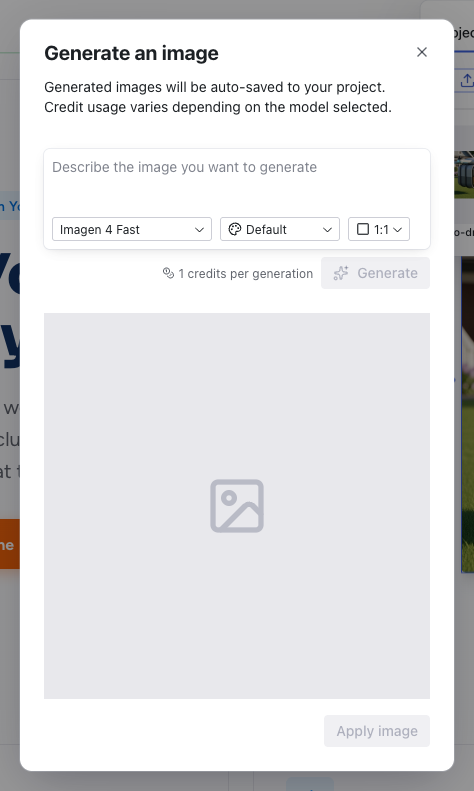
Clicking Generate opens a modal with a prompt field where you describe the image you want. Below the prompt you can configure:
- Model – choose which AI image model to use (e.g., Imagen 4 Fast)
- Style – select a visual style for the generated image
- Aspect ratio – set the dimensions (e.g., 1:1, 16:9)
The modal shows the credit cost per generation and a preview area. Once generated, click Apply image to use it for the selected element. Generated images are auto-saved to your project.
URL
The URL tab lets you enter a URL to use an externally hosted image. This is useful for pulling in images from a CDN, a design tool, or any public URL.
SVG Elements
When you select an SVG element (such as an icon) instead of an image, the Media control is replaced by an SVG Element control in the Editing Toolbar. This panel lets you browse the Lucide icon library and replace the selected icon with a different one. Double-clicking an SVG element in the preview opens this panel directly.
Related Articles
- The Editing Toolbar – all toolbar controls including Media
- Visual Editing – double-click images to open the Media panel
Publishing
Publish your project to a live URL that anyone can visit, and optionally connect a custom domain for a polished presentation.
Keyboard Shortcuts
Keyboard shortcuts for common actions in the Dazl editor. Open the full list anytime by pressing Shift+? or by selecting Keyboard Shortcuts from the Project menu.