
Chat
The Chat panel is the primary interface for working with the AI. It shows your full conversation history and provides the prompt box for sending messages.
The Chat panel is the primary interface for working with the AI. It shows your full conversation history and provides the prompt box for sending messages.
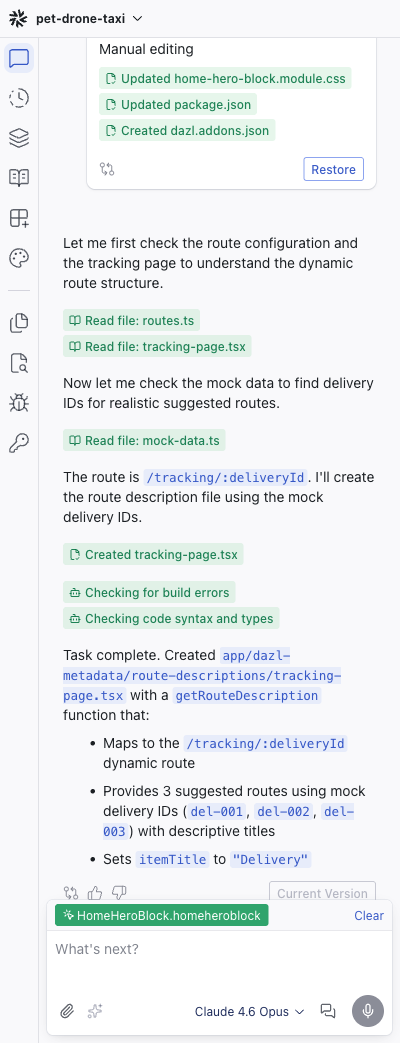
Conversation History
Messages are displayed chronologically. Each message shows:
- User messages — your icon, name, and timestamp
- AI responses — timestamp, model icon, and token cost (credits consumed)
AI responses can include formatted text (headings, lists, code blocks), file edit cards, action cards, and file count summaries. See Chat-Driven Editing for details on response types.
Prompt Box
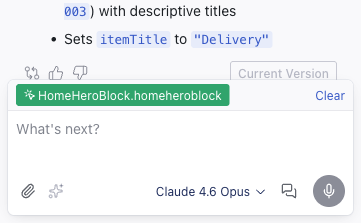
Located at the bottom of the Chat panel:
| Control | Description |
|---|---|
| Text input | Multiline field with "What's next?" placeholder |
| Element attachment | When an element is selected in Edit mode, it appears as a chip with the component name |
| Clear | Removes the attached element |
| Attachment button | Paperclip icon — attach files or images |
| Send button | Submit the prompt (disabled when empty) |
| Model selector | Choose the AI model for this message |
| Discuss | Toggle discuss mode — the AI responds conversationally without modifying code |
| Screen share | Share screen context with the AI |
| Voice input | Microphone for speech-to-text |
Queuing Tasks
You can send additional prompts while the AI is still working. Queued prompts appear as a "Tasks pending" list above the prompt box and run in order automatically once the current task finishes.
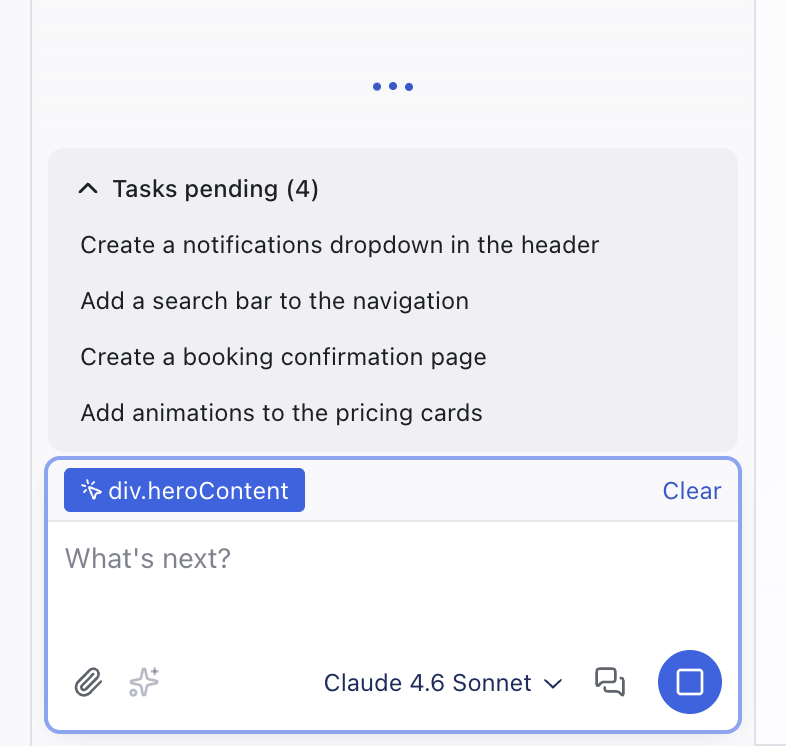
This lets you line up a sequence of changes without waiting between each one — describe the next step as soon as you think of it.
Discuss Mode
The Discuss button toggles discuss mode. When active, the AI answers questions and talks through ideas without making changes to your project's code.
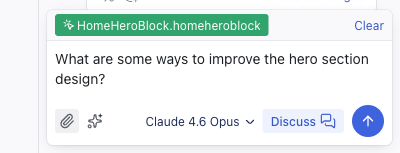
Use it to brainstorm features, plan an approach, or ask the AI about how your project works — why a component behaves a certain way, what a piece of code does, or how things are connected. Toggle it off when you're ready for the AI to start making changes again.
Model Selector
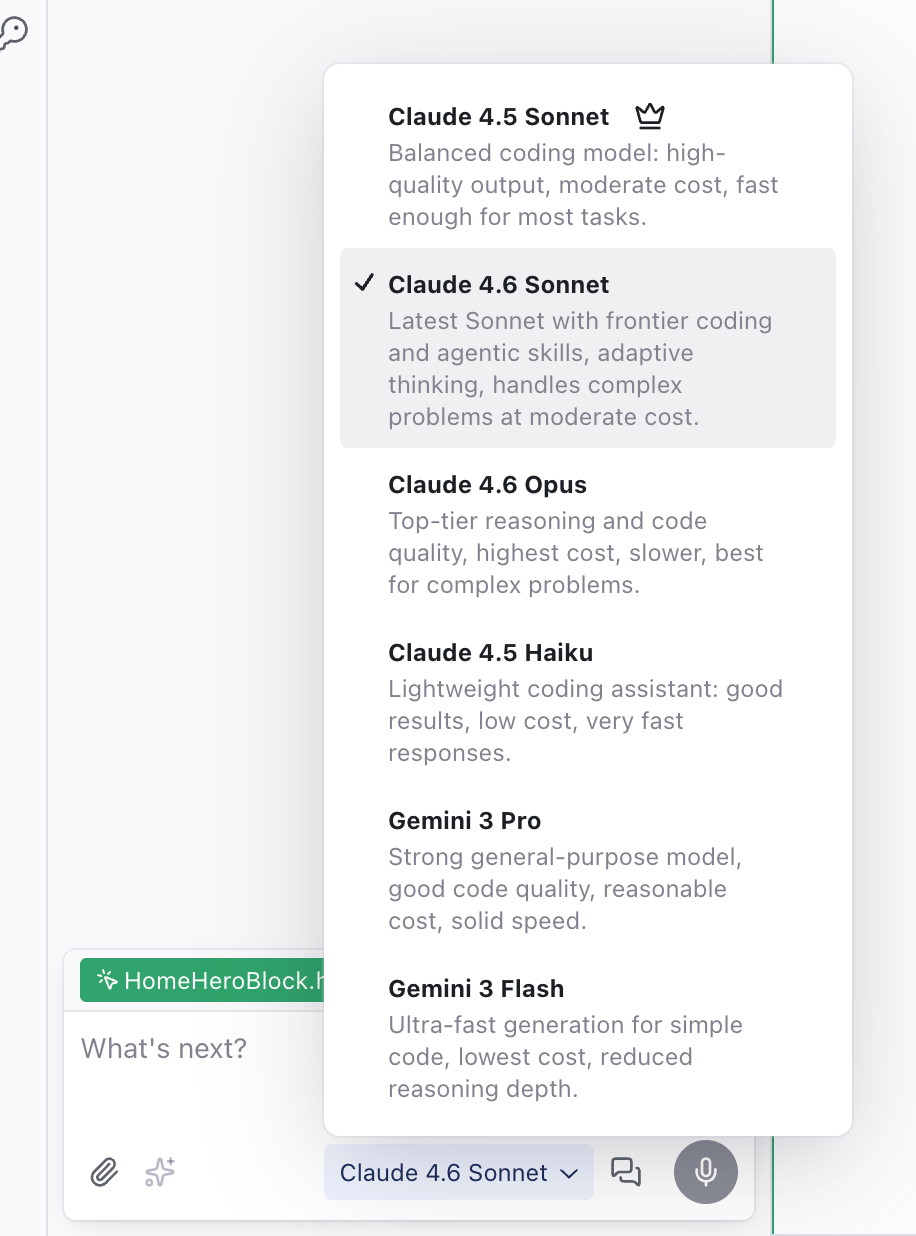
The Model selector below the prompt box lets you choose which AI model processes your next message. Click the model name to open the dropdown and select a different one.
| Model | Description |
|---|---|
| Claude 4.5 Sonnet (default) | Balanced coding model – high-quality output, moderate cost, fast enough for most tasks |
| Claude 4.6 Sonnet | Frontier coding and agentic skills with adaptive thinking – handles complex problems at moderate cost |
| Claude 4.6 Opus | Top-tier reasoning and code quality – highest cost, slower, best for complex problems |
| Claude 4.5 Haiku | Lightweight coding assistant – good results, low cost, very fast responses |
| Gemini 3 Pro | Strong general-purpose model – good code quality, reasonable cost, solid speed |
| Gemini 3 Flash | Ultra-fast generation for simple code – lowest cost, reduced reasoning depth |
There's no single best model — it depends on the task:
- Starting a new project — Claude 4.5 Sonnet is a good default. It balances quality and cost well for initial generation.
- Complex logic or architecture decisions — Claude 4.6 Opus excels at reasoning through complex problems, though it takes longer and costs more. Claude 4.6 Sonnet offers strong reasoning at a lower cost.
- Quick tweaks and routine changes — Claude 4.5 Haiku or Gemini 3 Flash handle routine modifications quickly and cheaply.
- Trying a different perspective — if one model isn't giving you the results you want, try a different one. Each model has different strengths.
You can switch models mid-conversation. Use a capable model for the initial structure, then switch to a lighter model for smaller refinements.
Each model consumes credits at a different rate. The token cost of each AI response is displayed next to the model icon. Lighter models (Haiku, Flash) consume fewer credits per interaction than heavier models (Opus). Visual editing, inspecting, and browsing your project don't consume credits — only AI-generated changes do.
Chat Overlay
When you switch to another sidebar panel (History, Elements, Specs, etc.), the Chat panel stays available as a collapsible overlay at the bottom of the sidebar. This lets you keep your conversation visible while working in other panels.
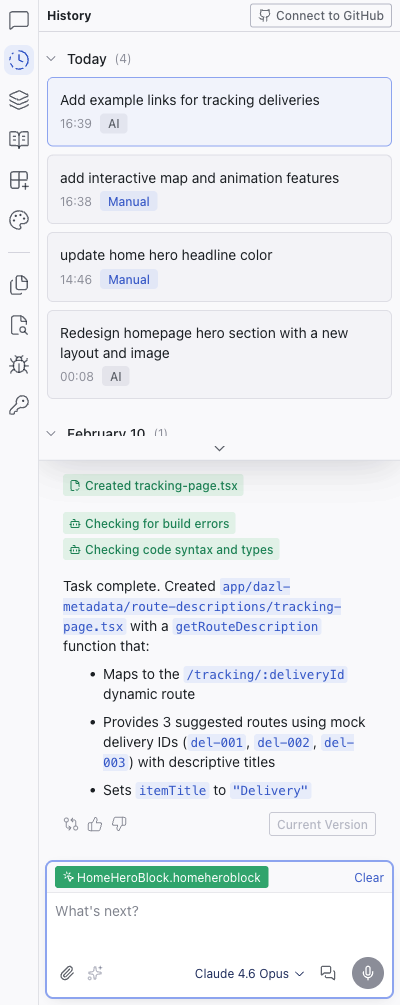
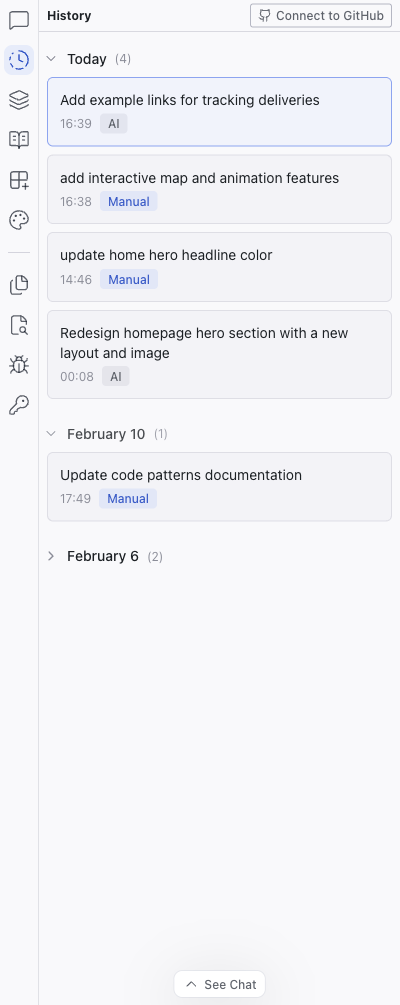
Click the chevron divider to collapse the Chat panel and give the active panel the full sidebar height. Click See Chat at the bottom to expand it again.
Message Actions
Each AI response has:
- Helpful / Not helpful — thumbs up/down feedback buttons
- View Code — opens a diff showing the changes made by that response
- Restore — rolls back the project to the state after that response
- Current Version badge — marks the response that matches the current project state
Related Articles
- Chat-Driven Editing – how to work effectively with the AI
- Upgrading to Pro – get more credits
Visual Editing
Visual editing lets you select and modify elements directly on the live preview — no prompts, no code, no credits. Use the Edit / Preview toggle in the top bar to switch between modes.
History
The History panel shows a timeline of every change made to your project, with the ability to view diffs and restore previous versions.